
To get started, subscribe to Gunbot Unlimited, log in to Gunbot Live, then use the first-run setup to connect Gunbot, verify the purchase, bring your license data forward, and add the first exchange API key. After that, review the dashboard and risk detail before adding pairs or enabling live trading.
Before The First Screen
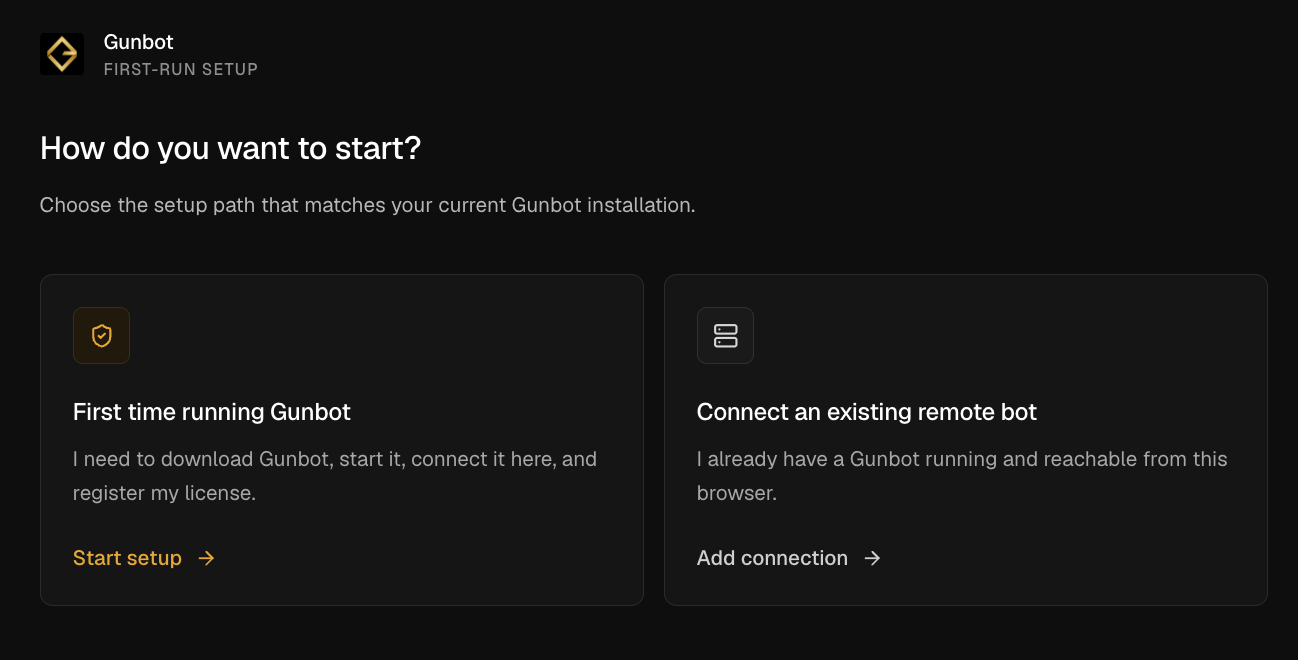
Start by choosing the paid plan and logging in. Then the first-run screen asks whether you are setting up Gunbot for the first time or connecting an existing remote Gunbot that your browser can reach.
The First Choice After Login
| Choice | When to use it | What happens next |
|---|---|---|
| First time running Gunbot | Use this when you still need to download Gunbot, start it, connect it, and activate access. | The guided setup walks you through five steps: prepare, connect, verify, register, and add an exchange. |
| Connect an existing remote bot | Use this when Gunbot is already running on a server, VPS, home machine, tunnel, proxy, or private network and the browser can reach its URL. | Gunbot Live sends you to connection settings to add the remote bot URL and GUI password directly. |
Step 1: Prepare Your Bot
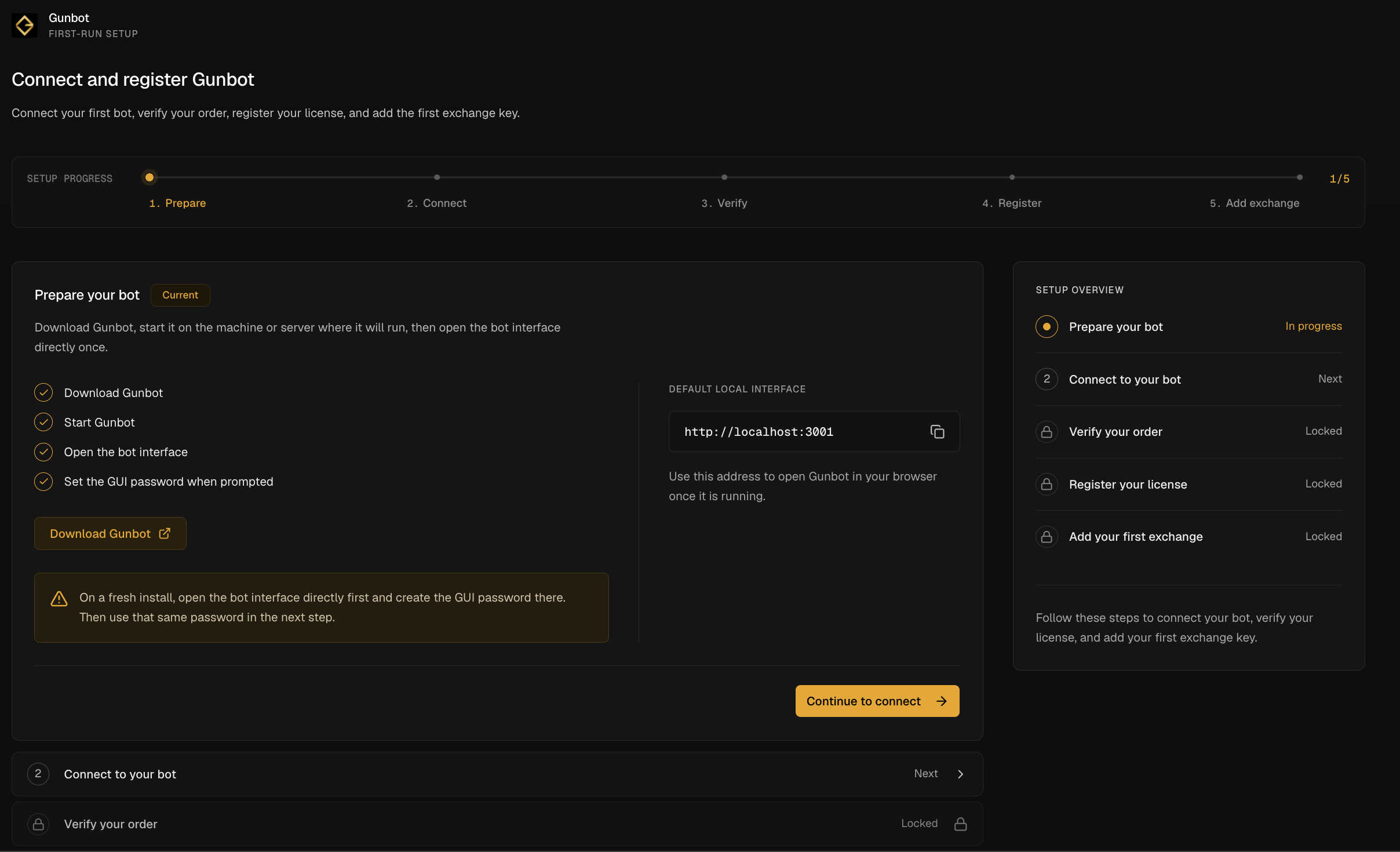
This step is about making sure Gunbot itself exists and is running. The setup screen points you to download Gunbot, start it on the machine or server where it will run, open the local bot interface at the default local address, and create the GUI password when prompted. In plain language: the bot must be running and reachable before the workspace can manage it.
Step 2: Connect To Your Bot
This step saves the connection to your bot. Give the connection a name, enter the Gunbot URL, and enter the GUI password from the bot interface. If the Gunbot instance uses 2FA, the setup can also submit the current two-factor code. After the connection is saved, the wizard moves to order verification.
Step 3: Verify Your Order
This step checks that the purchase exists and is paid. Enter the order number from the Gunbot purchase or plan flow. If the order is valid, the wizard marks it verified and opens the license step. If it is not found or not paid, correct the order number before continuing.
Step 4: Activate Your License
Gunbot licensing uses a Gunthy wallet address. You can paste an existing wallet address or generate a new wallet inside the setup flow. If you generate a new wallet, download and keep the backup because the private key controls that wallet. This step does not start trading; it prepares the license identity used by the setup flow.
Step 5: Add Your First Exchange
The final step asks for the first exchange and the public API key that should be attached to the license setup. The setup sends the wallet, verified order number, selected exchange, and public API key to the registration endpoint. When registration succeeds, Gunbot Live saves the Gunthy wallet into the connected Gunbot config, marks first-run setup as complete, and sends you to the ready state.
After Setup Is Complete
The success screen confirms that the bot is connected, the order is verified, the license is registered, and the first exchange is added. From there, you can open the dashboard, add trading pairs, or review connection settings. Review the Gunbot Live core concepts before enabling live trading, then inspect dashboard data, balances, exchange permissions, risk settings, and strategy configuration.
Before Live Trading
You should confirm that the selected exchange account is the one intended for automation. You can use API permissions that match the workflow and avoid broader access than needed. Check pair format, market type, trading limits, funds reserve, fees, spread, and liquidity. You can review the dashboard, active orders, fills, and risk state before adding exposure. You should know how to stop Gunbot or intervene from the exchange if behavior is unexpected.
External references
- official Gunbot setup and product overview: Context for the Gunbot bot that users connect before using the web workspace.
FAQ
What comes first: plan or setup?
Subscription comes first. The setup flow expects a purchase or plan order that can be verified before the license is registered.
Can I use Gunbot Live without logging in?
You can read public documentation without logging in. Connecting a bot, registering a license, adding an exchange, or managing trading requires the workspace.
What if I already have Gunbot running somewhere?
Choose the existing remote bot path when you already have a Gunbot instance reachable from the browser and only need to add its URL and GUI password.
Does adding the first exchange start trading?
No. The setup text explicitly treats the first exchange key as registration and configuration work. You should still add pairs, choose strategies, review risk, and understand settings before enabling live trading.
What should I check first after setup?
Check the selected connection, bot status, balances, active orders, recent fills, exchange permissions, pair settings, trading limits, and risk management state before changing live behavior.
Last updated: